A browser that waits for Tor
Amethyst has a web browser inside it, and since v1.17.0 it is a complete one: an address bar that knows a search from a site, nine search engines, per-site camera and microphone answers, downloads behind a consent card, find in page, text size, a desktop-site switch, and a Tor route that would rather load nothing than load the wrong way. This post is the tour.
Start with where it lives. The Browser tab sits in the bottom bar by default (also at Drawer → Browser). Idle, it is a launcher rather than a page: a Favorites grid of the web apps, nSites and napplets you have pinned; Recent, your twelve latest visits; Sites from people you follow and Apps from people you follow (NIP-5A nSites and NIP-5D napplets, up to twelve each, from the same follow-list selection as the nSites and nApplets screens); and Discover web apps, a built-in list of around sixty Nostr web clients minus the ones you have pinned. Every row carries a star to pin it.
Now the one split that explains every later difference. A site tapped from the launcher opens full screen in its own window — its own card in Recents, on any Android version. A web app you have starred into the bottom bar opens instead as an embedded tab under the bottom bar, which needs Android 11 or newer ("The in-app browser needs Android 11 or newer." on older phones). Both share one chrome; where only one has a feature — visit history, the readable error page, crash recovery — this post says which.
The omnibox and search engines
The field reads Search or enter address, and one rule decides which. Text with a scheme, or with no spaces and a dot in it (or localhost), opens as an address, with https:// added if you left it off; anything else goes to your search engine. As you type, the first suggestion row says what Go will do — "Go to example.com" or "Search for …" with the engine's name beneath. A sentence that merely contains a link counts as a search.
Pick the engine at Drawer → Settings → App Settings → Search engine. Nine radio rows, each with its host beneath: DuckDuckGo (the default), Brave Search, Startpage, Mojeek, Qwant, Ecosia, Kagi, Google and Bing. The choice is stored on this device, in the app-wide settings, not synced to your account. Each new window takes it at launch, so a window already open keeps the engine it opened with.
Three helpers share the field. Type a bare host and the top-ranked match fills in as selected ghost text: keep typing to replace it, Tab (or →) accepts, Escape leaves the field. With the field focused and empty, a paste and go button replaces Go whenever the clipboard holds text. And suggestions arrive in three groups — Favorites, Recent, Discover web apps — one row per host, twelve at most, each with ↖ to put its address in the field and ⋮ with Add to favorites / Remove from favorites and, on visited rows, Remove from history.
History has two rules. A site enters it only when a page actually finishes loading — a mistyped or unreachable address never does — and it keeps 500 entries. And only the full-screen window reports visits: pages browsed inside an embedded bottom-bar tab are never recorded.
Tabs and windows
Every site opened from the launcher gets its own window and its own card in Recents, titled and coloured after the page.
Links that ask for a new window get one. A target="_blank" link or a user-initiated window.open() opens a new browser window with opener and postMessage intact, so OAuth-style login popups work; one opened without a tap is blocked, and a popup inherits the opener's Tor choice. Long-press a link for Open in new window, Copy link address and Share link; long-press an image for Download image and Copy image address. This menu is a full-screen-window feature; the embedded tab has none.
When a page has wandered to a different origin than the one the window opened with, the pill shows You left with Back to app, which steps back to the last page on the home origin. An embedded tab also has a Full screen tile that reopens the page you are looking at — not the pinned start URL — as a window of its own, with the tab still running underneath.
The shared pill
Every web page, nSite and napplet, in both surfaces, wears the same control: a small grabber bar at the top centre. Tap it, or drag it down, to open the pill; drag up, or tap outside, to close. Collapsed, the bar turns red on plain HTTP, shows a thin progress line while a page loads, and carries a red dot when the page's console holds errors. Tor state is shown inside the pill, not on the collapsed bar.
Open, it is a menu:
- The origin field: a security badge — Onion-routed, Secure connection, Not secure or Sandboxed app — and the host. Tap it (or its pencil) to edit the address, long-press to copy the URL, tap the badge for Page info.
- The navigation capsule: Back, Forward, Reload (Stop while loading), a star to pin or unpin the site as a web favorite, and Share.
- The action tiles: Copy link, Find, Text size, Desktop, Add to Home, Open in (via a chooser that leaves Amethyst out), and, in an embedded tab, Full screen.
- The Privacy card: the Onion routing switch and the Site settings row, both below.
- The Console row: an error count and a switch opening the page's console as a sheet, filtered by All / Errors / Warnings; long-press a row to copy it.
The address editor opens with the current URL selected, with a Paste and go chip and, in an embedded tab, up to five suggestions from favorites and history (the full-screen window's offers none). Type a .onion here and the page switches to Tor first.
Onion routing is the per-site Tor switch, and it explains itself: "The site can't see your IP address" when on, "The site can see your IP address" when off, and "Off for this site, but another open page uses Tor, so this one goes through Tor too" when the route is forced (see the Tor rules). Flipping it reloads the page and remembers the choice for that host. The row exists only while Tor is enabled in Settings → Privacy Options; a host you have never chosen for defaults to Tor; and the choice follows the host actually on screen, not the start URL.
An nSite or napplet gets the same pill, trimmed for a sandbox — the origin field reads "nSite · sandboxed" or "nApplet · sandboxed" and cannot be edited, the tiles are Find and Text size — and its Privacy card adds What it can access with Manage permissions. The sandbox itself — the keyless process, the hash-verified blobs, the permission ledger — is in post nine, "There are several apps inside your app", under "And an app runtime, and a verifiable web".
Per-site permissions, and where to review them
When a page asks for the camera, the microphone or your location, a card headed by the origin badge says what it wants in plain words and offers three answers: Allow while visiting, remembered as Allow; Only this time, granted now and not remembered; and Don't allow, remembered as Block. A remembered answer skips the card next time; tapping outside the card denies without remembering. Location is coarse only, and a camera or microphone request on a page that is itself on Tor adds "Calls can reveal your IP address even over Tor."
To review your answers, open the Privacy card: the Site settings row summarises them ("Camera allowed · Microphone blocked", or "Nothing allowed yet") and opens the site's page under Settings → Account → Connected Apps, where Site permissions shows Ask / Allowed / Blocked per permission beside the site's NIP-07 signing grants, and Forget resets all three to Ask and revokes the grants. From a full-screen window this leaves the browser for the main app. Answers are per origin, identical on Tor and the open web, and shared across your accounts.
Page info, from the badge, edits the same three permissions in place, and shows the connection state, the Tor row, the certificate, and Clear site data, which asks "Sign out of this site and delete its data?" and then clears this origin's storage and cookies in the current account's profile.
Add to Home screen
The Add to Home tile asks your launcher to pin a shortcut, with the page title as label and the captured favicon as icon. The shortcut opens the page in Amethyst's full-screen browser, never the system browser, so your NIP-07 login is there when the page loads. On a cold start with Tor configured, the shortcut waits up to 30 seconds for Tor; if Tor isn't up by then it opens Amethyst itself instead of the page. Launchers without pin support toast "Your launcher doesn't support shortcuts", and only http(s) pages can be pinned. Separately, your first four web-app favorites appear in the long-press menu of Amethyst's launcher icon, opening the same way.
Downloads
Every download a page starts — a file link, an <a download>, a blob: or data: payload — shows a Download this file? card headed by the page's origin. It gives the exact file name that will be saved (trimmed in the middle so the extension stays visible), the size, From when the file comes from another host, and a red "This file type can run code…" warning for installable or runnable types — apk, exe, sh, html, svg and friends. Nothing is fetched or written until you tap Save. The file goes to the system Downloads collection ("Saved … to Downloads"); on Android 9 and lower it lands in Amethyst's private Downloads folder instead.
The name you see is the name you get: path parts are stripped, reserved characters become _, and bidirectional and zero-width characters are dropped, so a name engineered to display as invoice.jpg while really ending in .apk can't. Inline payloads over 25 MiB are refused outright, and after a Cancel a site waits a second before it may ask again, doubling per refusal up to a minute. Downloads follow the page's route: on a Tor page the transfer goes through the Tor proxy, DNS included, with no overall timeout. The one download without a card is Download image from a long-press — the long-press is the consent.
The Tor rules
The per-site switch sits on three rules, and they give this post its title. (What Tor covers across the rest of the app is in post seven, "What's private, and how to keep it that way", under "What Tor covers, switch by switch".)
Fail closed. A page set to Tor loads nothing until Tor's port is known and the proxy is confirmed in place. If Tor is on but not ready, the window refuses to open: "Not loaded: Tor isn't available for this page yet. Try again in a moment." If this device's WebView cannot take a proxy at all, Tor pages fail rather than go out directly.
Tor always wins. Every page in the browser's sandbox process shares one proxy route, computed from all open surfaces. If any open page needs Tor, the pages you set to the open web go through Tor too, and their Privacy card says so ("forced"). An open-web choice is honoured while no other open window or tab needs Tor.
Onions force Tor. A .onion typed or linked on a page with Tor off switches that page to Tor first. With no Tor to switch to, the page reads "This site needs Tor".
NIP-07 and tabs you are not looking at
A page can ask Amethyst to sign, or to encrypt and decrypt with NIP-44, through window.nostr; napplets can also publish, pay, upload and notify. While the page's window is paused or its embedded tab is parked, those requests are held — even under an "allow always" grant — and delivered when you come back, so a forgotten tab signs nothing behind your back. Reads such as getPublicKey and relay queries keep flowing. A surface holds at most 32 requests, a request held over 120 seconds fails with "The request timed out while the user was away.", and after a navigation held replies are dropped rather than handed to the next page. The grants themselves are per account and reviewed at Connected Apps, as post nine describes.
Reading tools
Find opens a floating capsule above the bottom edge: your query, a "3 / 12" chip (or "No matches" in red), previous and next, close. The keyboard's Search key jumps to the next match and Back closes it. Find and the console share the bottom of the screen, so opening one closes the other.
Text size reveals an inline control: steppers, a slider, the current value and Reset, in steps of 75, 90, 100, 115, 130, 150, 175 and 200 percent. It is per window or tab, not remembered across launches, and the one action that keeps the pill open while you adjust.
Desktop swaps the user agent for a Linux-desktop one, the way Chrome does, and reloads; tap again to go back. Per window or tab, web pages only.
A page's own fullscreen button — a video player, say — takes the whole window, system bars hidden until you swipe; Back leaves fullscreen first.
Errors and crash recovery
In the full-screen window, a page that fails to load shows the browser's own error page. It names the cause in words — "This site can't be found", "Tor isn't connected", "This site took too long to respond", "You're offline", "This connection isn't private", "This site needs Tor", and so on — with the net::ERR_… code small beneath and a Try again button. When another route could help it adds Try without Tor, with the note "Some sites block Tor. Without it, sees your IP address, and this site stays off Tor until you turn Tor back on.", or Open with Tor for an onion opened off Tor. Try without Tor appears only for unreachable or timed-out failures on a Tor page that is not an onion, and only while no other open surface needs Tor.
The embedded tab does not get this page: a bottom-bar tab that cannot load shows "Couldn't load this app." with Retry — after 12 seconds with nothing painted, or 45 seconds still loading.
Crashes split the same way. In the full-screen window, when a page's renderer dies only that page's view is dropped — every other window survives — and a "This page stopped working" screen offers Reload; the chrome stays, so you can edit the address instead. Embedded tabs share one renderer: the visible tab rebuilds itself at once (a spinner, then the page you were on, not the start URL), and parked tabs rebuild when next shown. A page that kills its renderer again within 30 seconds is not rebuilt in a loop; the tab falls to "Couldn't load this app." with Retry, and Retry restarts at the start URL.
Gestures
- Grabber bar: tap, or drag down more than a pixel, to open the pill; drag up, or tap outside, to close it.
- Origin field: tap to edit the address; long-press to copy the URL; tap the badge for Page info.
- Links and images (full-screen window): long-press for open in new window, copy, share, download image.
- Selection handles (embedded tab): drag a text-selection teardrop and the handle gives way to a magnifier loupe that follows your finger.
- Back: fullscreen video, then the pill, then Find, then page history, then the window.
The whole thing in one breath
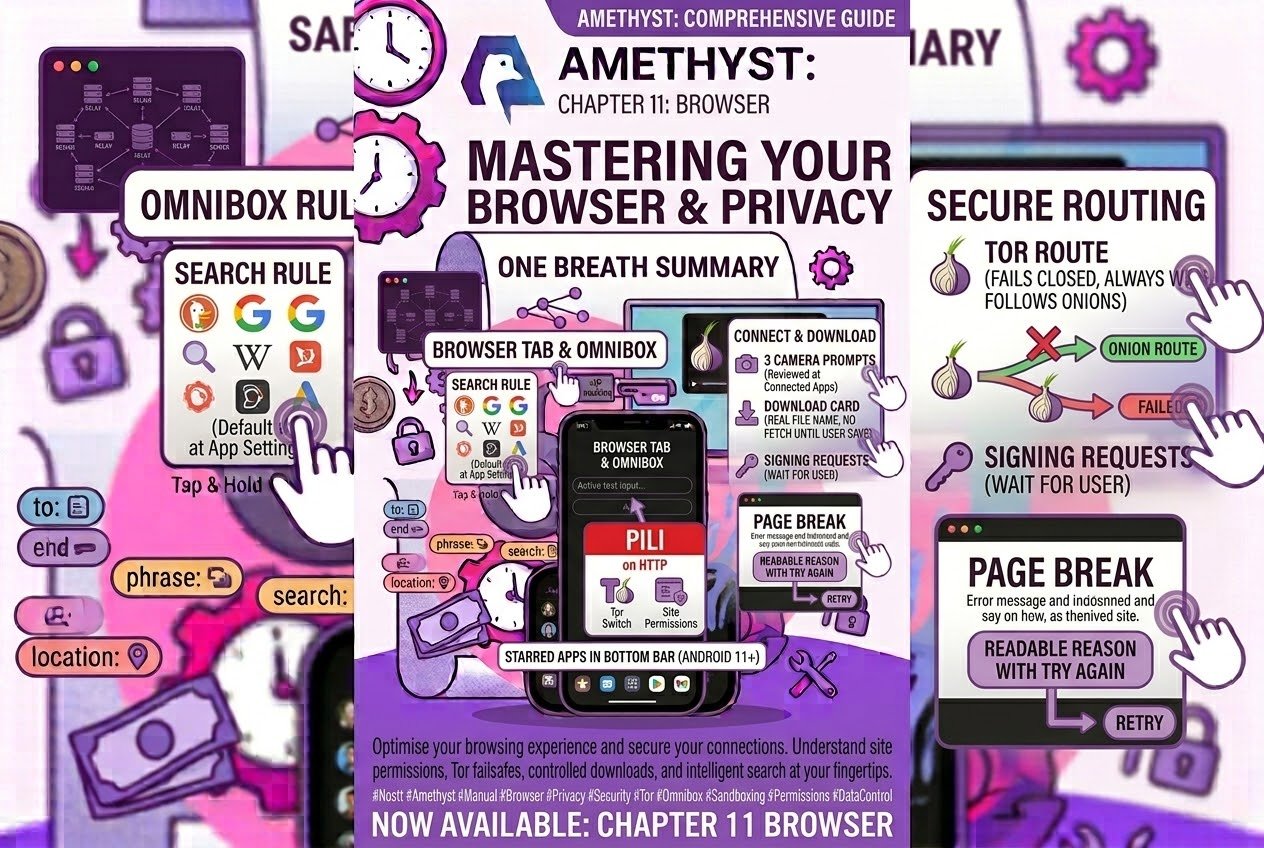
A Browser tab that is a launcher. One rule for the address bar, nine search engines, DuckDuckGo unless you say otherwise at App Settings → Search engine. Every site in its own window; starred apps in a tab under the bottom bar, on Android 11 and up. One pill over everything, red on HTTP, with the Tor switch and the site's permissions inside it. Three answers to a camera prompt, reviewed at Connected Apps. A download card that shows the real file name and fetches nothing until you say so. A Tor route that fails closed, always wins, and follows onions. Signing requests that wait for you to come back. And when a page breaks, a readable reason with Try again — or, in a bottom-bar tab, a Retry.
Tap the Browser tab and type something that isn't an address — the omnibox knows a search from a site.